

This integration deployment guide will help you quickly and seamlessly connect UKG Pro with HighMatch to start using assessments inline in your application workflow.
Summary of the Integration Flow
- After the candidate applies to an opportunity that has an assessment enabled, they will find a Start Assessment link at the end of the application process (assuming they pass through the disqualifying questionnaire).
- HighMatch will send the assessment link via email to the applicant to complete the assessment.
- HighMatch will update the assessment status on the Applicant List page of the Opportunity;
- Initial status is set to ‘created’.
- When the candidate clicks on the start assessment button and the assessment is created successfully, the status will change to ‘in progress’.
- If the order fails, then it will be updated to ‘error’.
- When the assessment is completed, the status will be set to ‘completed’.
- If the candidate was disqualified, the status will be set to ‘disqualified,’ and the candidate will not be presented with the Start Assessment button.
- When the applicant has completed the assessment, HighMatch will submit the URL to the assessment report to post to the Assessment tab in a candidate’s detail page.
Summary of Steps
There are 6 steps to configure the integration before you can request and receive back candidate assessment results from within UKG Pro. Steps 1-4 covers how to enable the integration:
Step 1: Reach out to UKG Pro Support Team
Step 2: Receiving Confirmation from UKG Pro
Step 3: Configuring your UKG Pro Account
Step 4: Adding the Assessment to an Opportunity
Steps 5-6 covers how to use the integration:
Step 5: Sending Assessments to Existing Candidates and the Candidate Application Experience
Step 6: View Assessment Results
Process Details
Step 1: Reach Out to UKG Pro’s Support
Once this integration setup has been approved, HighMatch will reach out to let you know we are ready to enable integration.
This email will direct you to reach out to UKG Pro’s support team to ask them to “enable the generic Assessment API on your account” and to give them some credentials, which will be provided to you by HighMatch in the same email.
To expedite the process, we will also provide specific answers to a questionnaire that UKG support will require to be filled out before they enable the integration.
Step 2: Receiving Confirmation from UKG Pro
A UKG representative will register the integration and notify you that the HighMatch integration has been enabled, providing you with a set of credentials to share with us.
Please let your HighMatch contact know, and provide this information to us via a secure link.
Once we receive your response, HighMatch will work behind the scenes to enable the integration in our systems, ensuring it syncs properly with UKG Pro.
We will then reach out to let you know once this process is complete and with further instructions. Please move on to the next step once you have received confirmation from HighMatch.
Step 3: Configuring your UKG Pro Account
You will need to configure a few settings in your UKG Pro account before the integration can be used.
- Go to Recruiting Gateway > Settings > Integrations > Assessments, select HighMatch.
- Set Enable Integration to On.
- Under Account Information: Enter the same credentials that HighMatch provided in Step 1.
- Under Assessment Details: Enter the Display Name and Display Description of your choosing.
- Note: Please keep in mind that both of these fields are visible to candidates during the application process.
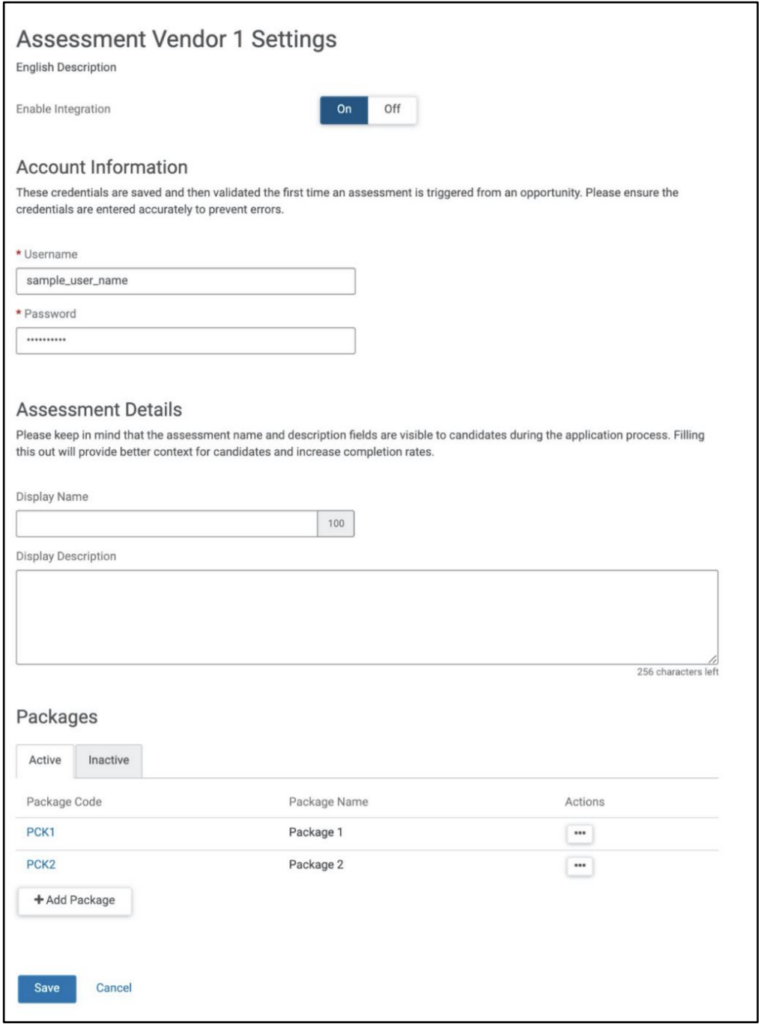
- Under Package: Click Add Package > enter the Code and Name provided in our confirmation email in Step 2.
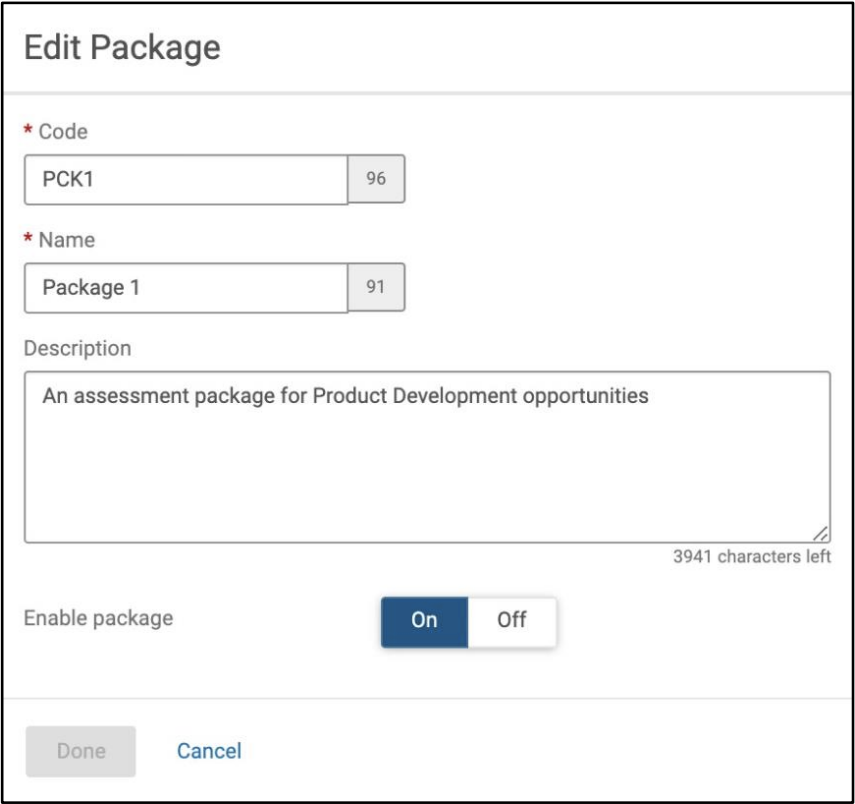
- Set Enable package to On > click Done.
- Click Save.
Step 4: Adding the Assessment to an Opportunity
Now you will need to add the relevant assessment to an Opportunity.
Note: You can add assessments to an Opportunity that is already published. If you do this, candidates who have already applied for the Opportunity can find the assessment in their Presence, but they might not think to look for it there. To help them find it, you can send the assessment to the candidate manually (see Step 5).
- In your Opportunity’s settings, select HighMatch under the Assessment / WOTC Screening section.
- Select the relevant package for this Opportunity.
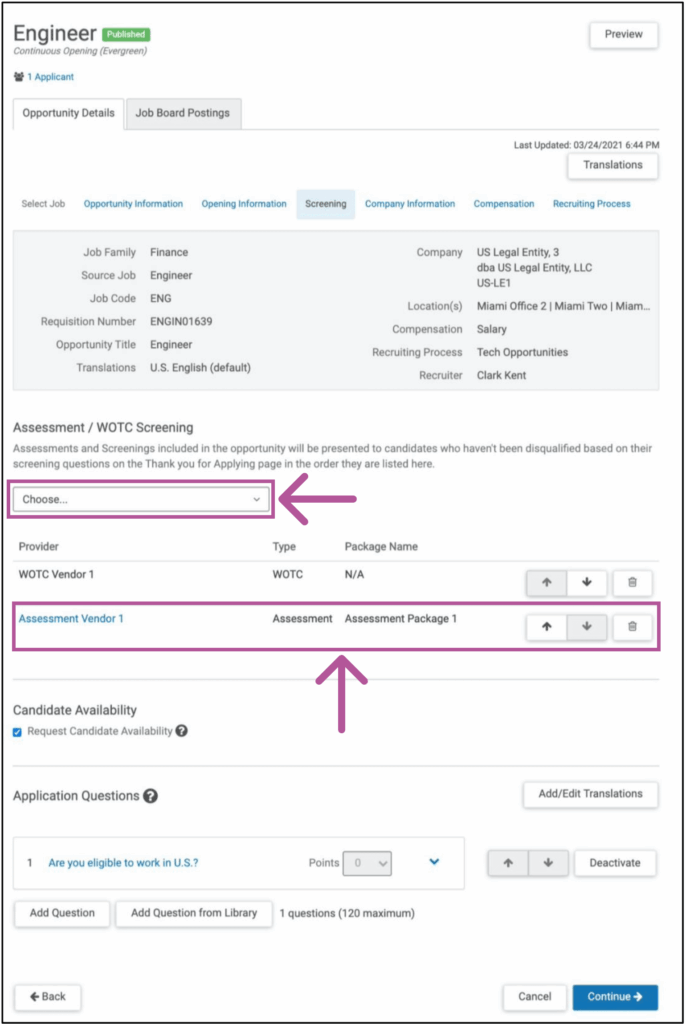
- Click Continue.
Now your setup is complete and it is now time to schedule a meeting with your HighMatch Success Manager to being integration testing. We will help guide you through Steps 5-6 during your meeting.
Step 5: Sending Assessments to Existing Candidates and the Candidate Application Experience
Assessments are sent to candidates inline during the application process or manually if that candidate has already applied to the Opportunity through a work-around.
To manually send to existing candidates:
Please note that while UKG primarily uses an inline process for assessments, we can use a work-around when enabling the integration to be able to manually send the assessment to candidates.
- On the Applicant List page of the Opportunity, select Request Assessment for the required candidate.
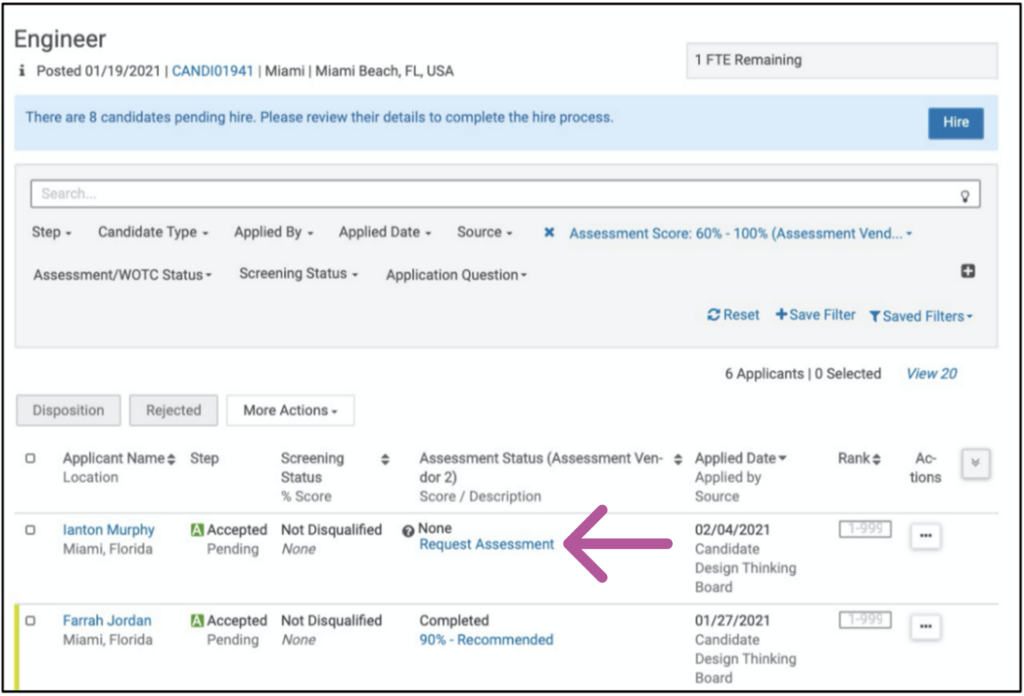
The application candidate experience:
After an applicant submits their application, UKG Pro presents an assessment to the applicant if:
- The assessment is currently included in the Opportunity.
- The respective assessment integration is currently enabled.
- The assessment package is currently active.
- The candidate did not provide a disqualifying answer to the screening question(s) during the application process.
Here are a few more details to note:
- On the “Thank You for Applying” page, assessments appear on the acknowledgement page after the candidate completes their application.
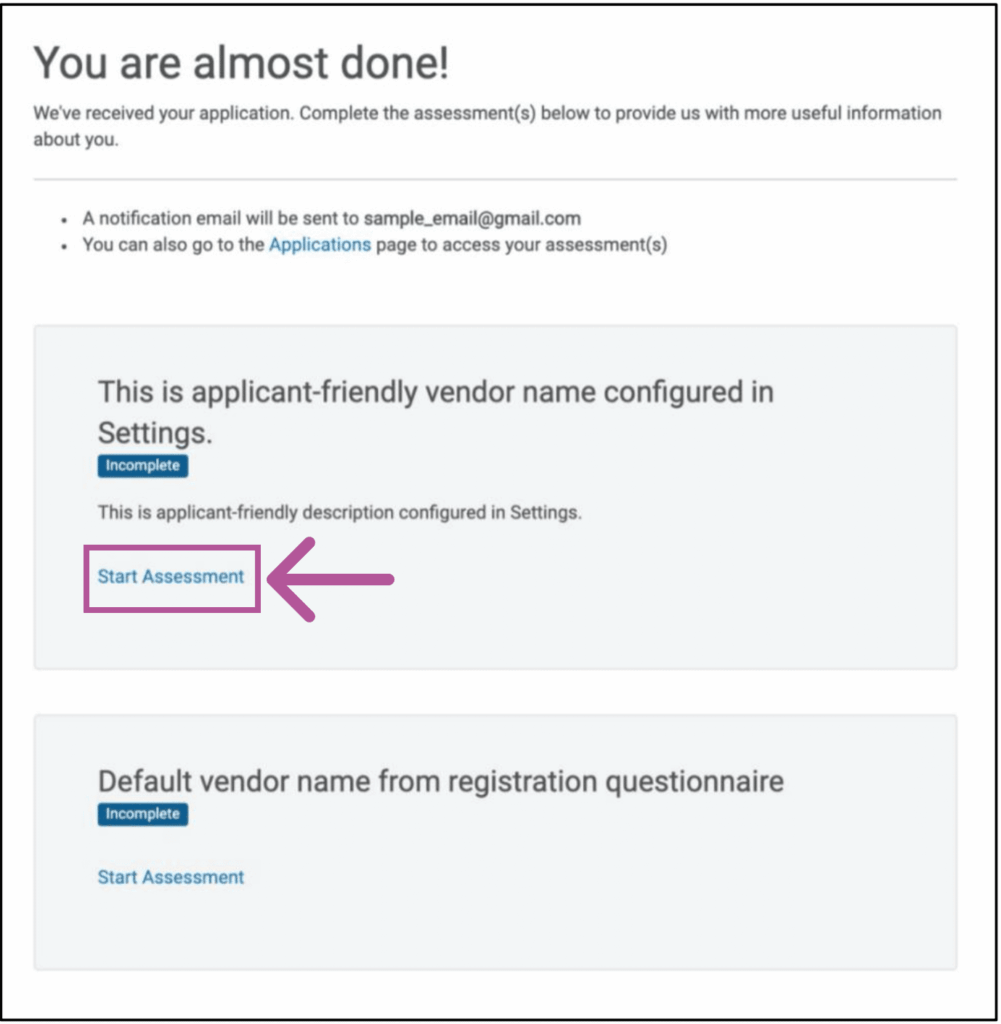
- Candidates can also access their incomplete assessments by navigating to their My Presence > Applications page and clicking the Complete Assessment(s) button.
- When the candidate has completed all their assessments for a specific job application, the button text changes to View Assessments. The candidate can use it to view the list of completed assessments, but cannot take them again.
- Every eligible candidate who submits their application receives an email with a link to the Assessments page, where they can access their assessments.
Step 6: View Assessment Results
In UKG Pro, you can see an applicant’s assessment results on the Applicant List page of the Opportunity.
The Assessment Status column indicates whether the applicant has taken the assessment and their score. To view more details:
- Click on the Assessments tab on the candidate’s detail page.
- Click the View Report button to view the candidate’s assessment report.
- Once you click the View Report button, a new tab will open with the assessment report. Here you can view HighMatch’s detailed explanation of the assessment’s results.
Your integration is now set up and ready to use! Please reach out to HighMatch’s Success team at support@highmatch.com if you have any questions or feedback regarding the HighMatch integration, assessments and assessment reports.