The participant’s name and the assessment’s title.
More Information button:
Click the button to see the following:
The top half of the dropdown menu displays:
The calendar symbol(left) marksthe date the participant completed the assessment.
The clock symbol(right) displaysthe amount of time it took the participant to complete the assessment.
The bottom half of the dropdown menu displays:
The email address allows you to email the participant.
Note: This will not send the report to the participant.
The print allows you to print a copy of the section of the report you are currently on.
Tab options:
“ShareReport” (left) will open a pop-up where you can share the report via email and/or text message. You will be able to choose who to share the report with, whether that be a team member or the participant themselves.
“Open in New Tab” (middle-right) opens a larger view of the report in a new tab on your web browser.
“Close Report” (right) closes the report taking you back to the participant’s profile view.
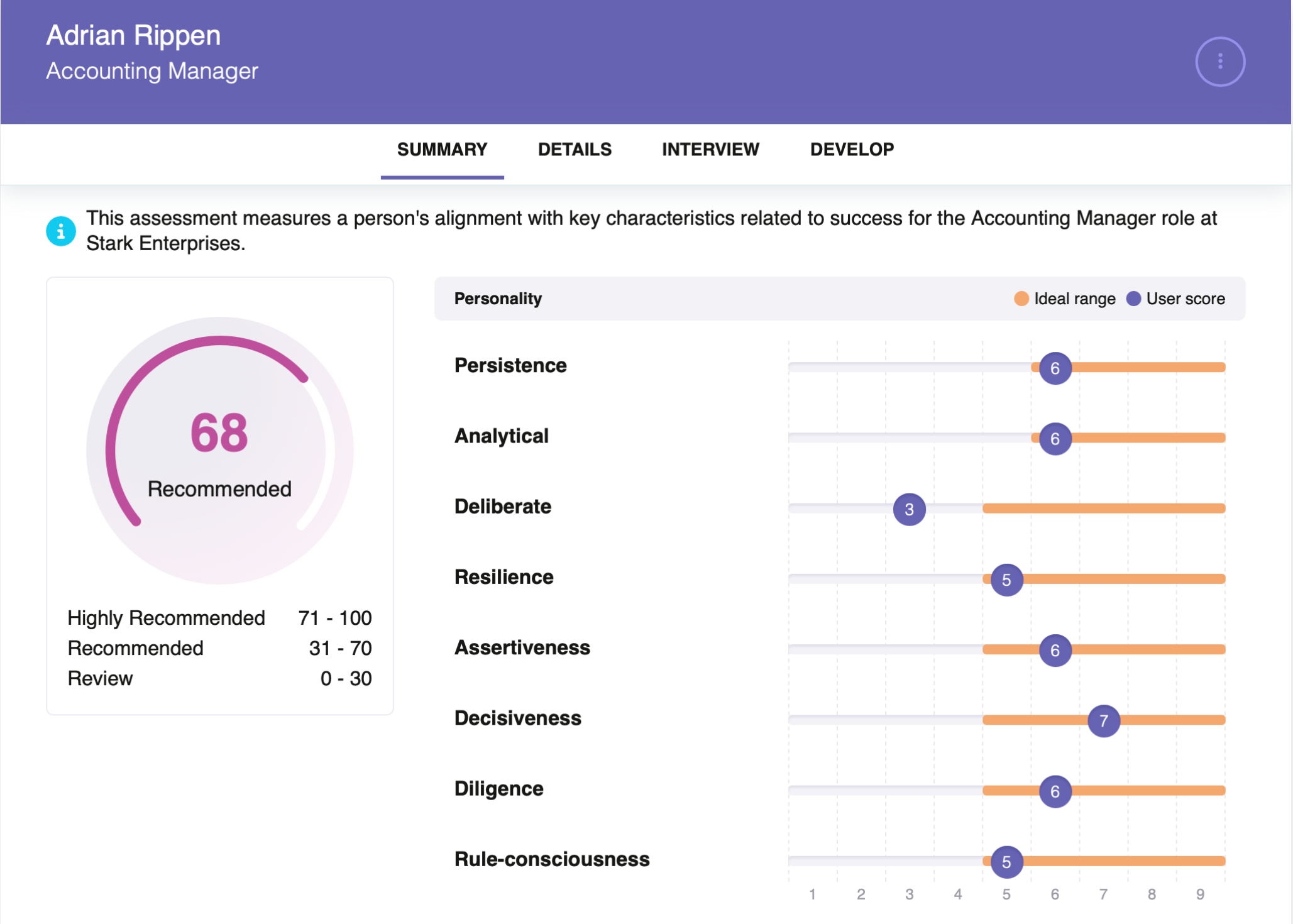
Summary:
This section provides a summary of the participant’s score for this assessment.
Overall Assessment Score: This is a participant’s total score based on theimportance of the personality traits related to one’s company and/or role. A participant can score between 0 and 100, and HighMatch will place them in a category based on their score.
“Highly Recommended” category: Scores that are in the highest range for this assessment.
“Recommended” category: Scores that are in the mid-range for this assessment.
“Review” category: Scores that are in the lowest range for this assessment.
Note: Companies can personalizeeach category’s name and score range to their preference. The names Highly Recommended, Recommended and Review are the default names. The names and their accompanying score ranges shown in the example images may differ from your report.
“Scores”: This is the list of the participant’s scores for each personality trait.
Note: Each assessment has individualized and unique personality traits depending on the company and/or role. The traits and the amount of traits shown in the example images may differ from your report.
“Ideal range”: Displayed as the orange bar, the ideal range goes from 1 to 9, with 1 being the lowest and 9 being the highest. This is the range in which the participant should ideally score in each trait for this particular role.
Note: Ideal ranges vary for every company and role. The ranges shown in the example images may differ from your report.
“User score”: Displayed as the purple dot with a number, the user score is the participant’s actual score for the personality trait. Ideally, the user score should be within or over the ideal range.
Click on a trait if you wish to see more details related to that specific trait.
Details:
This section lists more details about each personality trait and considerations to take based on the participant’s scores.
The Expand all toggle button expands or collapses all traits if you wish to view every trait’s details at once. Alternatively, you can choose which traits to view by clicking on them individually.
The personality trait’s name and definition.
The participant’s score for this particular personality trait.
Tip: See the Summaryportion of this article to learn more about a participant’s score.
“Details Description” provides an interpretation of the participant’s score for the personality trait and its relevance to the role.
“Details Consideration” offers a better understanding of the participant and things to consider before moving forward in the hiring process.
Note: Descriptions and considerations are individualized and change based on the participant’s score.
Interview:
This section provides interview questions that hiring teams can utilize to gain a more thorough understanding of participants to make better-informed decisions during the hiring process.
The Expand all toggle button expands or collapses all traits if you wish to view every trait’s details at once. Alternatively, you can choose which traits to view by clicking on them individually.
The personality trait’s name and definition.
The participant’s score for this particular personality trait.
Tip: See the Summaryportion of this article to learn more about a participant’s score.
“Interview Question” provides tailored questions based on each personality trait and the participant’s corresponding score. These questions are for hiring teams to utilize during future interviews.
Note: HighMatch tailors every interview question based on the participant’s score.
Develop:
This section provides coaching ideas to help the participants improve themselves in any areas listed in the report.
The Expand all toggle button expands or collapses all traits if you wish to view every trait’s details at once. Alternatively, you can choose which traits to view by clicking on them individually.
The personality trait’s name and definition.
The participant’s score for this particular personality trait.
Tip: See the Summaryportion of this article to learn more about a participant’s score.
“Development Idea” offers tailored suggestions for participants to reflect on for each of the personality traits listed in the report while working at your company.
Note: HighMatch tailors every development idea based on the participant’s score. Ideas are provided for every trait no matter the participant’s score.